How to Switch Hearing Aids Between iPhone and iPad? Modern hearing aids are designed to seamlessly integrate with Apple devices, offering convenience and enhanced user experience. Switching your hearing aids between an iPhone and an iPad is relatively simple but requires proper pairing and unpairing processes. This guide will walk you through the steps to ensure your hearing aids function flawlessly across both devices.
Table of Contents
Understanding Apple-Compatible Hearing Aids
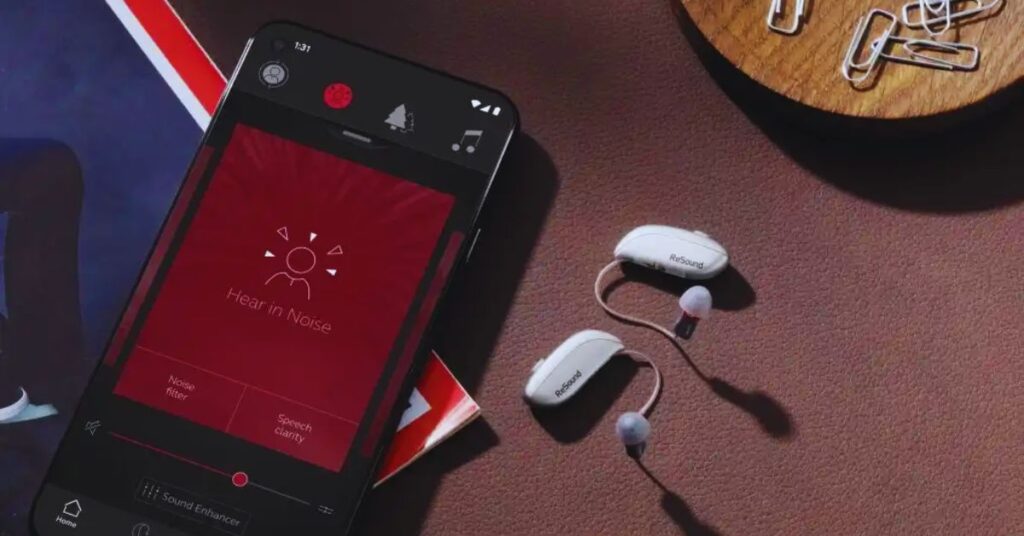
Apple supports a wide range of Made for iPhone (MFi) hearing aids, which are specifically designed to pair with iPhones and iPads. These hearing aids offer features like audio streaming, hands-free phone calls, and customizable settings via Apple’s Accessibility features. To take full advantage of these capabilities, learning how to switch devices effectively is key.
How to Switch Hearing Aids Between iPhone and iPad? Step-Wise
Before connecting your hearing aids to a new Apple device, you need to disconnect them from the current device. Here’s how:
- Go to Accessibility Settings
On your current device (iPhone or iPad), navigate to Settings > Accessibility > Hearing Devices. - Forget the Device
Tap on the name of your hearing aids and select Forget This Device. This will unpair the hearing aids, making them ready to pair with another device. - Turn Off Bluetooth
To prevent your hearing aids from reconnecting automatically, turn off Bluetooth on the device you are disconnecting from.
Pairing Hearing Aids with a New Device
Once your hearing aids are unpaired from the original device, you can connect them to a new iPhone or iPad:
- Activate Bluetooth on the New Device
Open Settings on your new device and ensure Bluetooth is turned on. - Make the Hearing Aids Discoverable
- For battery-operated hearing aids: Open and close the battery doors.
- For rechargeable hearing aids: Place them in and out of their charging case.
- Locate the Hearing Aids on Your New Device
In Settings > Accessibility > Hearing Devices, your hearing aids should appear under “Devices.” Tap their name to initiate pairing. - Complete the Pairing Process
Wait for the pairing process to finish. You’ll receive a notification confirming the connection.
Using iCloud for Seamless Device Switching
If you frequently switch between your iPhone and iPad, iCloud can simplify the process:
- Enable iCloud Sync
Sign in to the same Apple ID on both devices and go to Settings > [Your Name] > iCloud. Enable Accessibility to sync your hearing aid settings. - Automatically Switch Devices
When Accessibility is synced via iCloud, your hearing aids will automatically connect to whichever device you are actively using, eliminating the need for manual switching.
Troubleshooting Common Issues
Hearing Aids Not Detected
- Ensure your hearing aids are in pairing mode.
- Restart Bluetooth on both devices.
Audio Not Transferring Properly
- Check that the volume is not muted on the connected device.
- Ensure your hearing aids are listed as the active audio output in the Control Center.
Conclusion: How to Switch Hearing Aids Between iPhone and iPad?
Switching hearing aids between an iPhone and iPad is straightforward when you follow the right steps. By unpairing from the current device, pairing with the new one, and utilizing iCloud for syncing, you can enjoy a seamless experience across all your Apple devices. With these tips, managing your hearing aids becomes a hassle-free part of your daily routine.
Readme also:
- How to Block a Website on iPhone: Step-by-Step Guide
- How to Delete Stickers on iPhone: A Complete Guide
- How to Send a Fax from iPhone Without App In 2025
- How to Track an Android Phone from an iPhone?
- How to Set Ringtone in iPhone Without iTunes (2025 Guide)
- How to Combine Two Videos on iPhone: A Step-by-Step Guide
- How to See Upcoming Birthdays on Snapchat iPhone?
- How to Send Mass Text on iPhone Without Group Message?
- How to Turn Off Ask Permission to Download Apps on iPhone?
Frequently Asked Questions (FAQ)
Q1: Is this tool free to download and use?
A1: Yes, the basic version of the tool is available for download for educational purposes. Advanced premium features may require a service registration.
Q2: Will my device remain unlocked after a system restart?
A2: Yes, untethered bypass solutions ensure the device remains unlocked and fully accessible even after restarts.
Q3: What should I do if the tool doesn’t detect my connected device?
A3: Reinstall your Apple USB drivers, verify the lightning cable connection, or run the tool in Administrator mode.
Reference Citation: For official support guides and device activation guidelines, check the official Apple Support Portal.