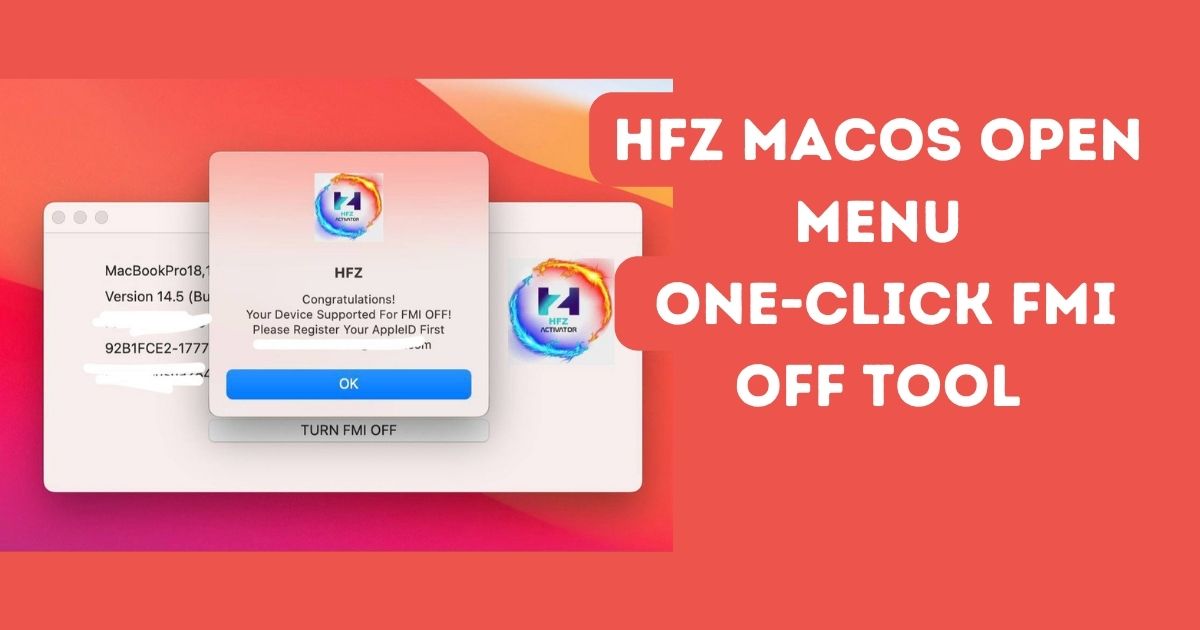
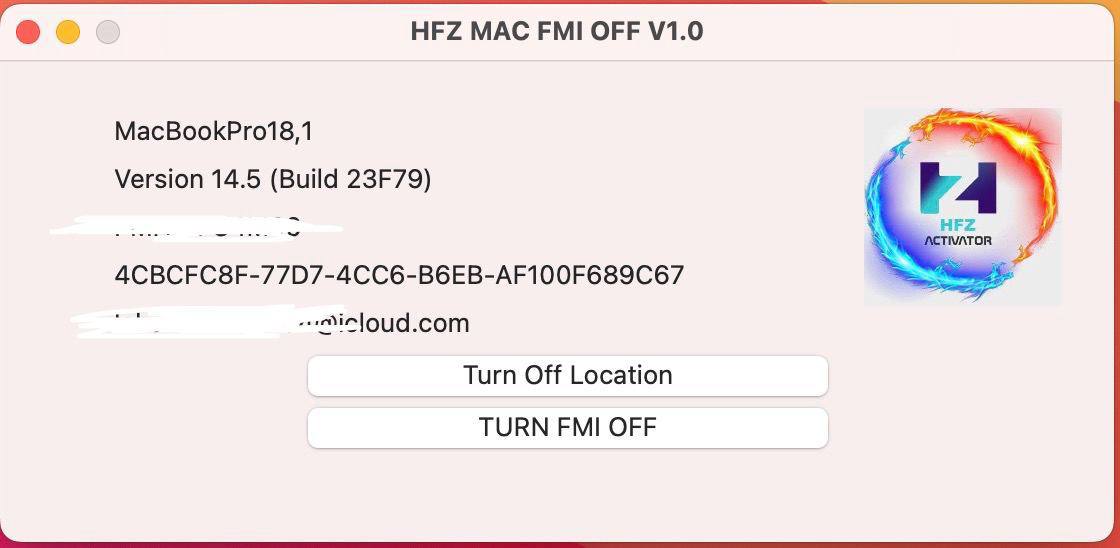
Effortlessly Disable FMI on Any Apple Silicon MacBook! Struggling to disable Find My Mac (FMI) on your M-series MacBook? Look no further! HFZ macOS Open Menu v1.0 provides a simple, one-click solution. It’s designed to support all Apple Silicon models, making FMI Off a breeze if your Trusted Device List is accessible.
Table of Contents
Why Choose HFZ macOS Open Menu?
- Compatible with All M-Series Macs: Works seamlessly across all Apple Silicon devices.
- Quick and Reliable: Trusted by professionals for fast results.
- Free Updates: Get the latest features without extra costs.
- Simplified Workflow: No technical expertise required.
Key Features:
- Full Support for Apple Silicon: Compatible with M1, M1 Pro, M2, and all Apple Silicon models.
- One-Click FMI Off: No complicated steps, just one click to disable FMI.
- Beginner-Friendly Instructions: Perfect for both tech experts and first-time users.

Download HFZ Mac OS Open Menu FMI Off Tool
| Attribute | Details |
|---|---|
| File Name | HFZ Mac OS Open Menu FMI Off Tool.zip |
| File Size | 56MB |
| Type | .exe / .dmg |
| Compatible OS | Mac |
| Password | hfzactivator |
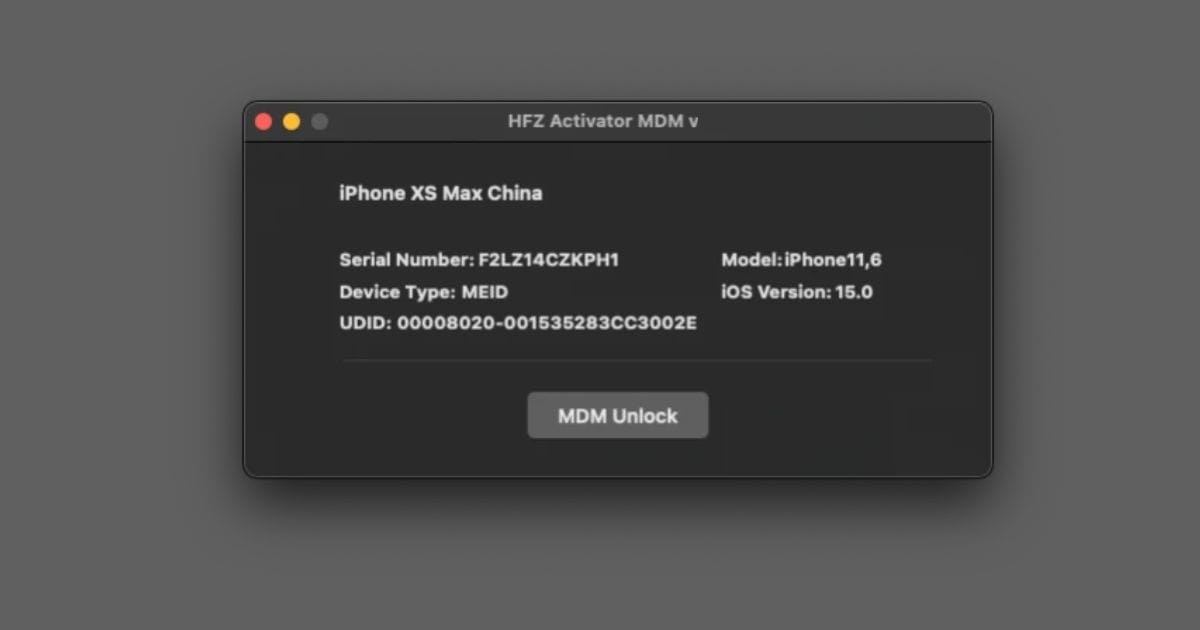
Support Reseller for HFZ Mac OS Open Menu FMI Off Tool
For help or questions about using the HFZ Mac OS Open Menu FMI Off Tool, connect with these official support groups:
Contact on Supported Chat
How to Use HFZ macOS Open Menu
Disabling FMI on your MacBook has never been easier! Just follow these three simple steps:
- Boot into Recovery Mode:
- Restart your Mac and enter Recovery Mode.
- Open Terminal and type:shell Copy code
csrutil disable- Press Enter and restart your Mac.
- Launch HFZ Tool & Disable Location Services:
- Open the HFZ tool on your Mac.
- Click the Disable Location Services option.
- Your Mac will restart automatically.
- One-Click FMI Off:
- Relaunch the HFZ tool.
- Select FMI Off and confirm the process.
That’s it! Your Mac is now free from FMI restrictions.
Stay Updated
Exciting Update Alert! We’re working on a powerful new release with enhanced features and broader compatibility. Stay tuned!
FAQs
Which Mac models are supported by HFZ macOS Open Menu v1.0?
All Apple Silicon Macs (M1, M1 Pro, M1 Max, M2, etc.) are fully supported.
Can I use this tool without disabling SIP?
No, you must disable System Integrity Protection (SIP) by running csrutil disable in Recovery Mode.
Is this tool safe to use?
Yes! HFZ macOS Open Menu is designed with user safety and reliability in mind. Always follow the steps carefully.
Conclusion
HFZ macOS Open Menu v1.0 is the ultimate solution for disabling Find My Mac (FMI) on any Apple Silicon MacBook. With its intuitive design and step-by-step process, even beginners can unlock their device in minutes. Whether you’re a professional technician or a tech enthusiast, this tool is tailored for efficiency, reliability, and ease of use.
Stay ahead with HFZ and look forward to exciting updates that bring even more functionality and compatibility. Don’t wait—unlock the potential of your Mac today with HFZ macOS Open Menu!
Supported Devices & System Requirements
Before proceeding with the installation of this tool on your device, please verify that your hardware and software versions are fully supported. Running bypass utilities on incompatible setups can lead to temporary boot loops or recovery states.
- Supported Chips: A5, A6, A7, A8, A9, A10, A11, and T2 Apple Security Chips.
- iOS Compatibility: iOS 12.0 up to iOS 17.3 (Untethered activation support).
- System OS: Windows 10/11 (64-bit) or macOS High Sierra and newer.
Step-by-Step Installation & Execution Guide
Follow this detailed procedure carefully to perform the bypass recovery on your device securely:
- Download the latest official package of the tool to your computer.
- Extract the contents to a secure folder and run the executable file as an Administrator.
- Connect your iOS device using a certified USB lightning cable. Ensure all background security programs are paused.
- Select the appropriate bypass option (e.g., Hello Screen, iCloud Remove, or FMI OFF) based on your device state.
- Wait for the utility to complete the process. Your device will automatically restart once finished.
Risks & Safety Disclaimer
Important Warning: Jailbreaking, modifications, and bypassing activation locks are advanced recovery procedures. We advise all users to backup their device data. This guide is provided for educational and data recovery purposes only. The user assumes all responsibilities for any modifications made.
Reference Citation: For official support guides and device activation guidelines, check the official Apple Support Portal.